What is Spektra?
Spektra is desktop software for DJs that reads the audio of every track you own and plots your whole library as one map, the Observatory, where you drop anchors and plot a course between them.
You navigate by sound, not just by the genre tags, ratings and crates you kept up by hand. Spektra measures every track with spectral analysis and audio embeddings, so the structure comes from the audio itself.
It runs on macOS, Windows and Linux, and imports from Mixxx and from Rekordbox (local audio files; streaming tracks aren’t analysed).
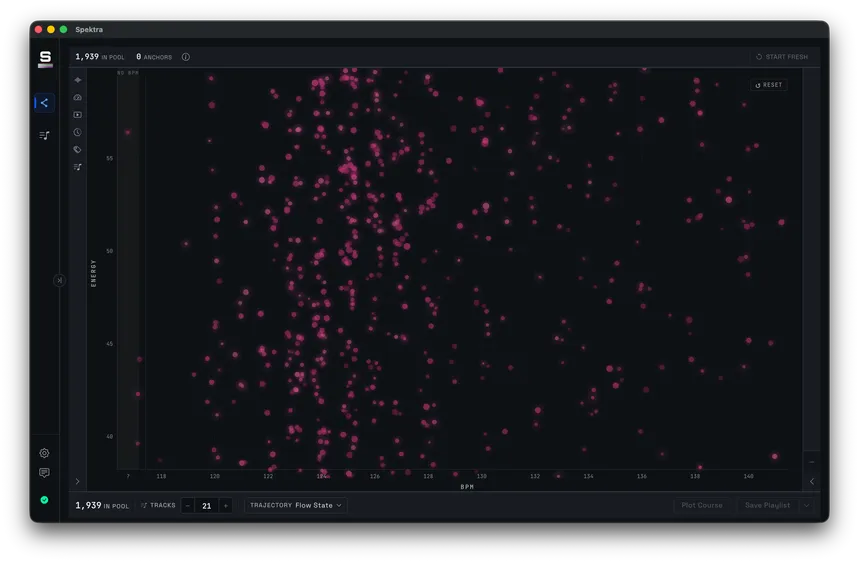
- Position
- — BPM across, Energy up.
- Size
- — Bass Density. Heavier low end reads larger.
- Brightness
- — Color, from dark and muted to bright and airy.
- NO BPM
- — the far-left gutter, for tracks without a BPM from your DJ software.
The Observatory, Spektra’s main surface. Each star is one track from the user’s own library, measured from the audio on their own machine.
About
What is the Observatory?
The Observatory is Spektra's one main surface: a map of your whole library where every star is one analysed track, placed by BPM across and Energy up.
- Position: BPM across, Energy up. Tracks without a BPM from your DJ software sit in the NO BPM gutter on the far left.
- Size: Bass Density. Heavier low end reads larger.
- Brightness: Color, a track’s tonal character, from dark and muted to bright and airy.
All of it is measured from the audio; nothing on the map is typed by hand. Clusters, outliers and gaps show up at a glance. Click a star to audition it, drop up to five anchors, and plot a course between them.
Is Spektra a set planner?
It can be, if that's how you want to use it. Spektra is built for discovery, finding what's already in your library, and makes no claims about where it sits in your workflow.
It exports playlists because that’s the fastest way to get a discovery into the DJ software you already use. Some people plot a course and play it top to bottom; others pull two tracks out of it and move on. Both are fine.
The point is what you find on the way there.
Does Spektra run in the cloud?
No. Spektra runs on your machine: your library, your analysis and your listening never leave your computer.
No account, no cloud, no subscription, no telemetry. Analysis, including the audio model, runs offline on your own computer. Bought once and owned, the way software used to be.
About what leaves your machine: Except a check for updates, and anything you choose to send. What the app sends
Does Spektra use AI?
A music audio model runs on your machine and compares how your tracks sound. Spektra doesn't create music or text, and your audio never leaves your computer.
The model turns each track into an embedding, which powers Similar Sounding, Sound Like and part of Energy. The rest is measurement: spectral analysis of loudness, low end and tone.
When you plot a course, Spektra sequences tracks you already own, using the anchors, track count and Trajectory you chose. Nothing on the map is invented.
About what leaves your machine: Except a check for updates, and anything you choose to send. What the app sends
How it works
What are embeddings, and how does Spektra use them?
An embedding is a list of numbers that describes how a track sounds, so tracks that sound alike get similar numbers. Spektra computes one for every track, on your machine, with a music audio model fine-tuned on electronic music.
Spektra listens to a few slices of each track to compute an embedding.
Embeddings drive:
- Sound Like: your anchors rank the rest of the library by closeness, and the map tints every star by its nearest anchor.
- Courses: how smoothly one track sounds into the next.
- Energy: the model’s reading of intensity is part of the score.
“Sounds alike” to the model is a useful approximation, not a promise that two tracks mix well. Embeddings also don’t decide where a star sits on the map; see why similar tracks can be far apart.
How is Energy calculated, and what are its limits?
Energy is a 0–100 estimate of how hard a track hits, combining spectral measurements of the audio with the audio model's reading of its intensity. Treat it as a useful approximation, not a verdict.
What goes in. Spectral analysis measures impact (Power), how busy the percussion is, and low-end weight (Bass Density). The audio model adds its own sense of intensity, so a sparse track with a pounding kick can outrank one that just sounds busy.
Where it falls short.
- It’s relative to your library. Scores are scaled to your own collection: 50 is the middle of your library, not of all music. Importing a lot of new tracks can shift existing scores.
- Mastering counts. Heavy compression and limiting push a score up. A dynamic, quieter master can score lower than it feels.
- Context isn’t in the number. Perceived energy is subjective and depends on what played before: a 60 lifts the room after a run of 40s and lets it breathe after a peak. Spektra scores each track on its own.
- One number per track. A track that builds slowly gets a single score, weighted toward its most intense section.
Until every track has its embedding, Energy uses the spectral half alone and Spektra marks it as provisional. The recipe may change as it gets tuned.
What do Power, Bass Density and Color measure?
They're three measurements Spektra takes from the audio of every track, each scored 0–100 against your own library. Power is physical intensity, Bass Density is low-end weight, and Color is tonal character from dark to bright.
- Power: impact and weight. Dense, heavily compressed tracks score high.
- Bass Density: dominant sub-bass and thick basslines score high; airy, treble-led tracks score low. It sets a star’s size on the map.
- Color: dark tracks are industrial and dub-heavy; bright tracks are airy, with extended treble. It sets how bright a star is.
Because the scores are calibrated to your library, a 70 means “high for your collection”. Power and Bass Density also feed Energy.
Getting started
Which platforms does Spektra run on?
macOS 12+ (Apple Silicon and Intel), Windows 10+, and Linux (Ubuntu 22.04+, Debian 12+, Fedora 36+).
Get the installer for your system from the download page. macOS builds are signed and notarized. The Windows installer isn’t code-signed yet, so Windows shows a warning the first time; see why Windows warns me.
On Linux, the deb is for Ubuntu, Debian and distros built on them, such as Linux Mint and Pop!_OS. On anything else, including Fedora, use the AppImage. Older releases such as Ubuntu 20.04 or Debian 11 can’t run Spektra: the deb won’t install, and the AppImage can’t open your library.
Why does Windows warn me when I install?
The Windows installer isn't code-signed yet, so SmartScreen can't tell who published it and stops it with "Windows protected your PC". Click More info, then Run anyway.
- Run the installer. SmartScreen shows Windows protected your PC.
- Click More info.
- Click Run anyway. The installer carries on as normal.
v1.0 will be signed. macOS builds are signed and notarized and install without a warning.
Which DJ software does Spektra work with?
Spektra imports from Mixxx and from Rekordbox (local audio files; streaming tracks aren't analysed). It exports playlists as M3U8 files, and Rekordbox libraries also get a Link File.
- Mixxx: Spektra reads its library directly. See importing from Mixxx.
- Rekordbox: Spektra reads a collection you export as XML. Streaming tracks have no local file, so there’s nothing to analyse. See importing from Rekordbox.
BPM and key come from your DJ software. M3U8 is a plain playlist format that Mixxx and plenty of other DJ software import. Spektra can’t import Serato, Traktor or Engine DJ libraries.
Does Spektra change my DJ library?
No. Spektra reads your DJ library and never writes to it, and it never changes your audio files.
Spektra keeps its analysis in its own database. The only files it writes are the ones you ask for: M3U8 exports and, for Rekordbox libraries, Spektra’s own Link File, which Rekordbox reads only when you import a playlist from it.
Close Mixxx before you import or sync, because Spektra can’t read Mixxx’s library while Mixxx has it open.
Import
How do I import from Rekordbox?
In Rekordbox, choose File → Export Collection in xml format, then choose that file in Spektra. Spektra reads the local audio files in it; streaming tracks aren't analysed.
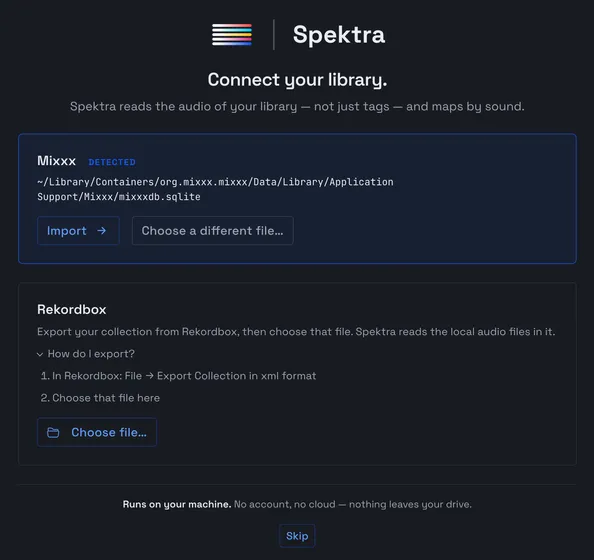
- In Rekordbox: File → Export Collection in xml format.
- In Spektra, choose the Rekordbox card when you connect your library, then choose that file.
Export the whole collection, not a single playlist. Streaming tracks (Beatport, Tidal, SoundCloud and the like) have no local audio file, so Spektra skips them and counts them in Sync history.
Your Rekordbox playlists show up as Rekordbox Playlists, which you can use as filters. BPM and key come from Rekordbox. To pick up changes later, see updating your library.
Rekordbox import arrived in Spektra 0.10. On an older version, update first.
How do I import from Mixxx?
Close Mixxx, then choose the Mixxx card when you connect your library. Spektra finds Mixxx's library on its own in the usual place.
Spektra can’t read Mixxx’s library while Mixxx has it open, so close Mixxx
first. If Spektra doesn’t find it, choose the mixxxdb.sqlite file yourself:
- macOS:
~/Library/Containers/org.mixxx.mixxx/Data/Library/Application Support/Mixxx/ - Windows:
C:\Users\<you>\AppData\Local\Mixxx\ - Linux:
~/.mixxx/
Your crates show up as Mixxx Crates, which you can use as filters. BPM and key come from Mixxx.
I changed my library. How do I update Spektra?
Open Settings → Library Management and click Sync Now. Spektra adds new tracks, updates changed ones, removes deleted ones, and analyses only what's new.
- Rekordbox: export your collection again to the same file first. Spektra reads that export, not Rekordbox itself.
- Mixxx: close Mixxx, then sync.
When the source file is newer than your last sync, the status bar says Library Needs Sync. Turn on Auto-sync on startup to sync every time Spektra opens.
If you moved the library file, use Locate file… instead. It keeps your tracks, their analysis and your saved Playlists.
What happens if I import a different library?
Spektra holds one library at a time, so importing a different one replaces the current library: its tracks, their analysis and every saved Playlist. Spektra offers to export your Playlists as M3U8 files first.
Start from Settings → Library Management → Replace library…. Every track in the new library is analysed from scratch, which takes a while for a large library. Your Short tracks setting carries over.
Moving the same library to a new place is different: use Locate file…, which keeps everything.
Which audio formats does Spektra read?
MP3, WAV, AIFF, FLAC, AAC and ALAC (M4A), Ogg Vorbis and Opus, plus WebM and Matroska audio.
The files need to be on a drive your computer can reach when Spektra analyses them. If a file can’t be read, it’s listed under Show Issues in Library Management with the reason, and you can clear the record to try again.
Analysis
How long does analysis take?
It depends on the size of your library and your computer, and a large library takes a while the first time. You can keep using Spektra while it runs, and later syncs analyse only new tracks.
Analysis runs in two passes: spectral analysis, then the audio model.
- The Observatory opens as soon as the first tracks are ready. Filtering, inspecting and auditioning work throughout.
- Plot Course becomes available once every track has its embedding. Until then, Energy is marked provisional.
- Stars can shift a little as analysis finishes, because scores are calibrated to the whole library.
You can Pause Analysis and resume it from Library Management. For a long first run, turn on Prevent Sleep in System Settings.
Does Spektra detect BPM and key?
No. Spektra reads BPM and key from your DJ software, so analyse your tracks there first.
A track without a BPM is still analysed. It sits in the NO BPM gutter on the left edge of the map, because it can’t be placed by tempo.
Key Notation in App Settings shows keys as stored (Original), in Open Key, or in Traditional notation. If a key or BPM is wrong, fix it in your DJ software and sync.
Why are some tracks missing from the map?
Usually because the track isn't analysed yet, is set aside as a short track, couldn't be read, or has no local audio file.
- Still analysing: stars appear as tracks finish.
- Short tracks: with Exclude short tracks on (Settings → Library Management), tracks under your minimum length stay off the map and out of Courses. You can still add one to a Playlist by hand.
- Couldn’t be read: Show Issues in Library Management lists each file and why.
- No local file: Sync history counts files not found and streaming tracks.
- Filtered out: an active filter narrows what’s shown.
Tracks without a BPM aren’t missing: look in the NO BPM gutter on the far left.
Observatory
Why are two similar-sounding tracks far apart on the map?
Because the map places stars by BPM and Energy, not by how they sound. Two tracks with the same texture at different tempos or intensities land far apart.
To find tracks that sound alike, click a star and look at Similar Sounding, or make it a Sound Like anchor: the map tints every star by its nearest anchor, so its sonic neighbours light up wherever they sit.
Size and brightness (Bass Density and Color) give a rough sense of sound at a glance.
How do anchors and Path, Either and Blend work?
Anchors are up to five tracks you pick on the map; Spektra ranks the rest of your library by how close each one sounds to them. With two or more anchors, Path, Either and Blend decide how they combine.
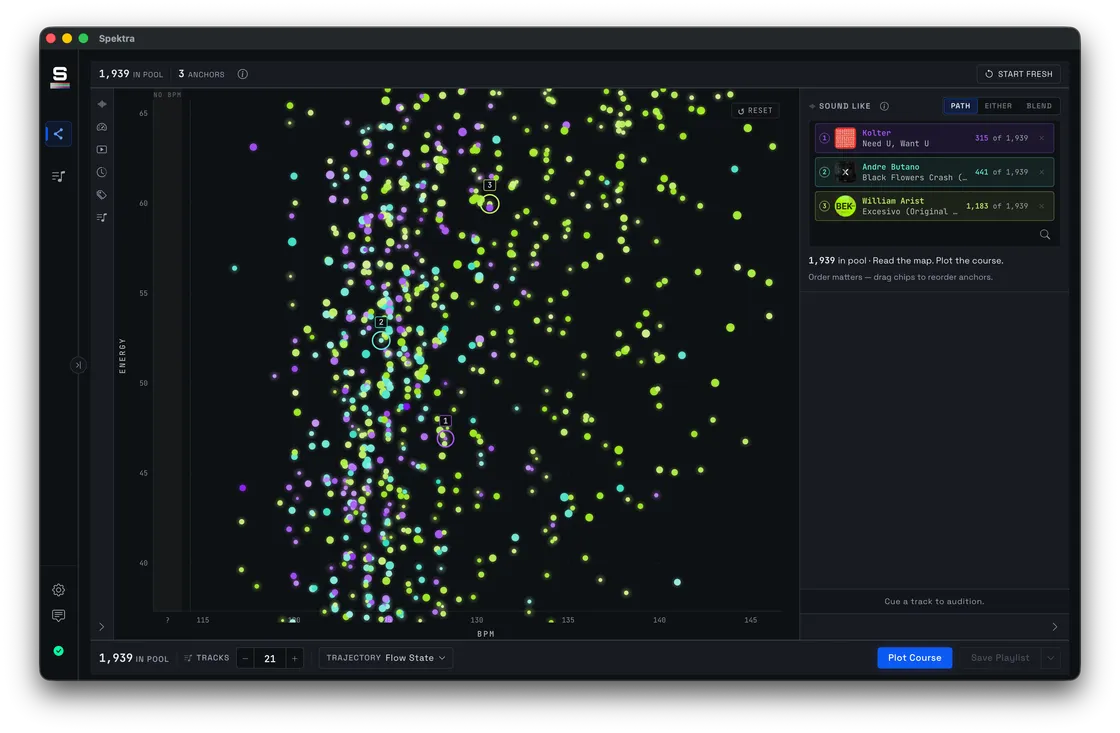
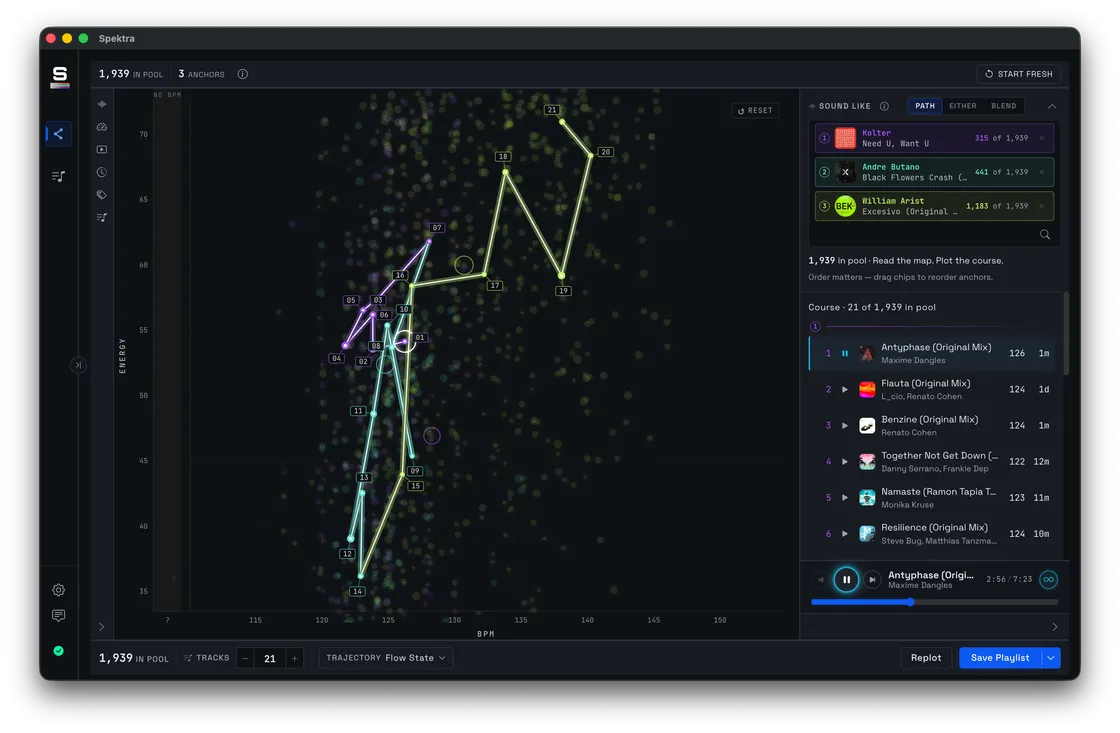
- Path: walks from anchor to anchor in the order you added them. Order matters.
- Either: alternates tracks near any anchor.
- Blend: tracks that sit between all the anchors.
Then set a track count and a Trajectory, and click Plot Course.
The map tints every track by its nearest anchor, but a Course draws only from each anchor’s closest matches; distant tracks stay on the map for context. Anchors join the pool but aren’t guaranteed a place in the Course.
What's the difference between a Course and a Playlist?
A Course is the unsaved result of Plot Course; a Playlist is a Course you saved. Plotting again replaces the Course, while a Playlist stays until you delete it.
Click Save Playlist to keep a Course. Playlists are listed in the sidebar, where you can open them, add tracks by hand and export them.
You can export a Course as an M3U8 file without saving it. The Rekordbox Link File carries saved Playlists only.
Export
How do I export to Mixxx or other DJ software?
Click Export M3U on a Playlist, or Export M3U… in a Course's export options, then import the file in your DJ software.
In Mixxx, right-click Playlists in the library sidebar and choose Import Playlist.
- Naming Pattern in App Settings sets the exported file’s name.
- Export all playlists in App Settings backs up every Playlist at once.
- The file points at your audio files by their paths, so it works on the computer that has them.
Rekordbox can import M3U8 too, but the Link File is easier and keeps tracks M3U8 import would skip.
How do I get playlists into Rekordbox?
Use the Link File: one XML file Spektra keeps up to date with every saved Playlist. Point Rekordbox at it once, then import any Playlist from Rekordbox's rekordbox xml tree.
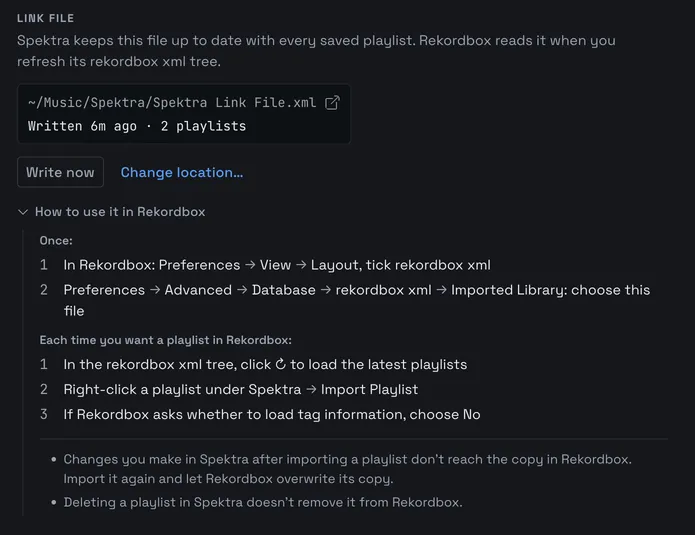
You’ll find it under Link File in Settings → Library Management.
Once:
- In Rekordbox: Preferences → View → Layout, tick rekordbox xml.
- Preferences → Advanced → Database → rekordbox xml → Imported Library: choose the Link File.
Each time you want a playlist in Rekordbox:
- In the rekordbox xml tree, click ↻ to load the latest playlists.
- Right-click a playlist under Spektra → Import Playlist.
- If Rekordbox asks whether to load tag information, choose No.
Changes you make in Spektra after importing a playlist don’t reach the copy in Rekordbox: import it again and let Rekordbox overwrite its copy. Deleting a playlist in Spektra doesn’t remove it from Rekordbox. A Course has to be saved as a Playlist before it appears.
Why are some tracks missing after a Rekordbox M3U8 import?
Rekordbox's M3U8 import skips any track whose file path contains #. Spektra warns you when an export includes such tracks; the Link File keeps them.
The warning says how many tracks Rekordbox will skip and names them. To get them into Rekordbox, import through the Link File instead, which writes paths exactly as Rekordbox stores them.
Mixxx isn’t affected.
Help
How do I report a bug or suggest something?
Click Feedback in Spektra's sidebar, or Send Feedback in Settings, choose Bug, Idea or Other, and write what happened. You'll get a reference like FB-7K3Q9X to quote if you email [email protected].
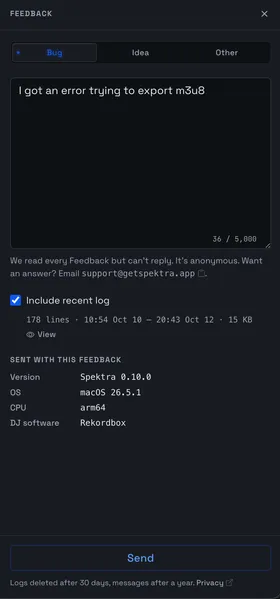
Feedback is anonymous: no name, email or device identifier is sent. Every Feedback gets read, but there’s no way to reply to it, so email [email protected] if you want an answer.
For bugs, tick Include recent log. You see exactly what will be sent before it goes. What the app sends lists every field and how long it’s kept.
Didn’t find it?
Click Feedback in Spektra’s sidebar, or email [email protected] if you want a reply. If you’ve already sent Feedback, quote its reference (like FB-7K3Q9X).